AWS-Logo_White-Color
1.
Introduction and Preparation
1.1
Introdution
1.2
Setup the website
2.
Static Chat Application with S3
2.1
Adding static data to the website
2.2
Accessing static data from javascript
3.
Creating an API
3.1
Creating a policy for the Lambda function
3.2
Code walkthrough of the first Lambda function
3.3
Running the lambda function with test data
3.4
Adding an API Gateway trigger to the function
3.5
Understand and Setup CORS
3.6
Calling the API from the website
4.
Use DynamoDB for storage
4.1
Create DynamoDB tables
4.2
Create some sample data in DynamoDB
4.3
Update Lambda policy to access DynamoDB tables
4.4
Read a conversation from Dynamo DB
4.5
Read conversation list from DynamoDB
4.6
Write new messages to DynamoDB
5.
Break up the monolith – Start build Complete App
5.1
Create API structure in API Gateway
5.2
Lambda functions for reading and writing messages
5.3
Exporting a JavaScript client and Swagger
5.4
Remove hard-coded user names from Lambda
6.
Add Identity to the application
6.1
Create a user pool
6.2
List Users in the API
6.3
List Users on the site
6.4
Create a new conversation
6.5
Create sign up page
6.6
Create verification page
6.7
Add login and logout
6.8
Add a Cognito authorizer to the API Gateway
6.9
Results
7.
Optimization Setting up a CloudFront CDN
8.
Clear Resources
More
AWS Study Group - Blog
AWS Study Group - FB Group
English
Tiếng Việt
Clear History
Workshop
Cloud Journey
Last Updated
10-12-2024
Team
Tấn Hoàng
Build a Complete serverless Chat Website
>
Add Identity to the application
> Create a user pool
Create a user pool
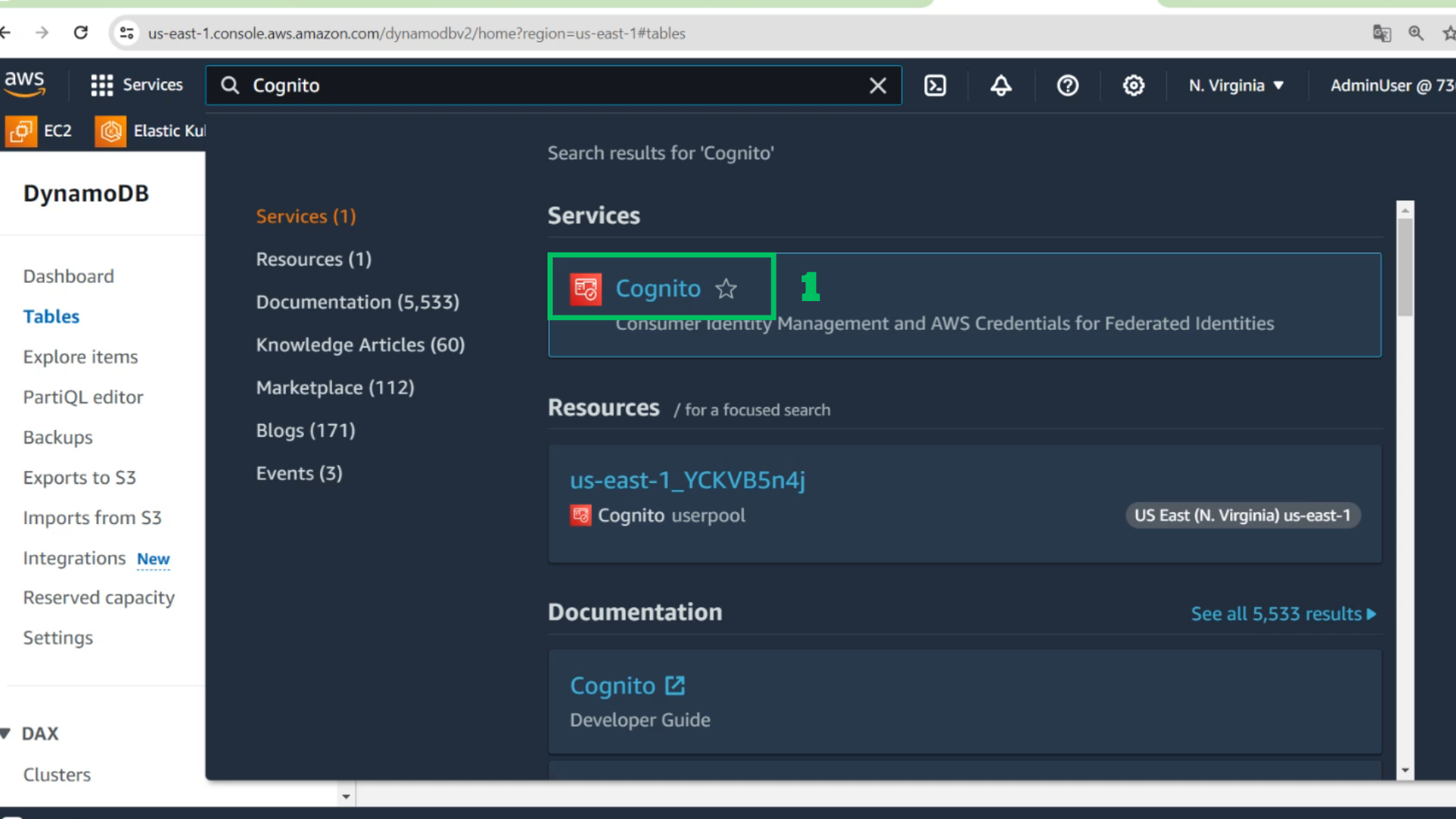
At AWS Console
Choose Cognito
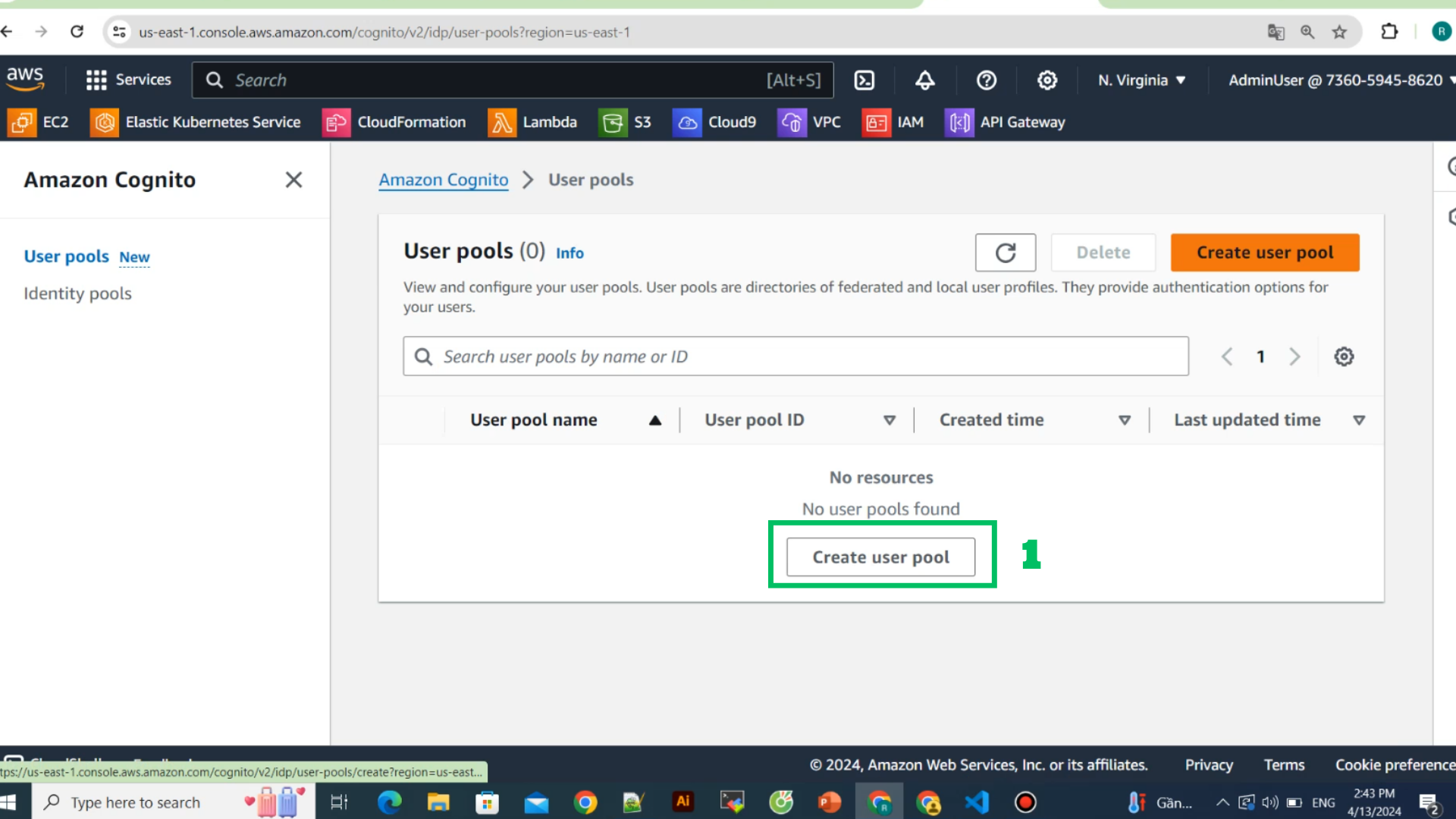
At Cognito interface
Choose Create user pool
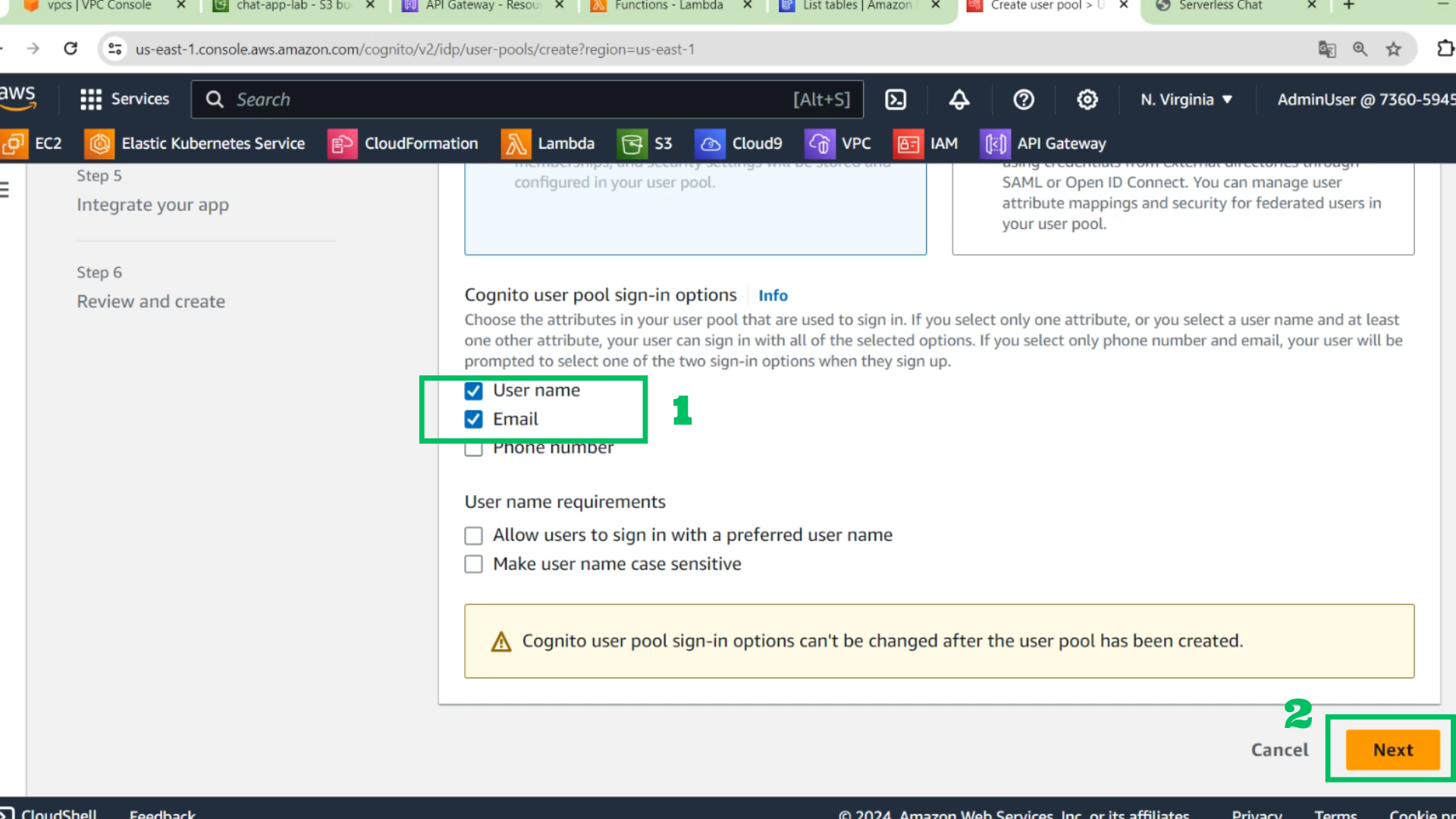
Choose User name
Choose Email
Choose Next
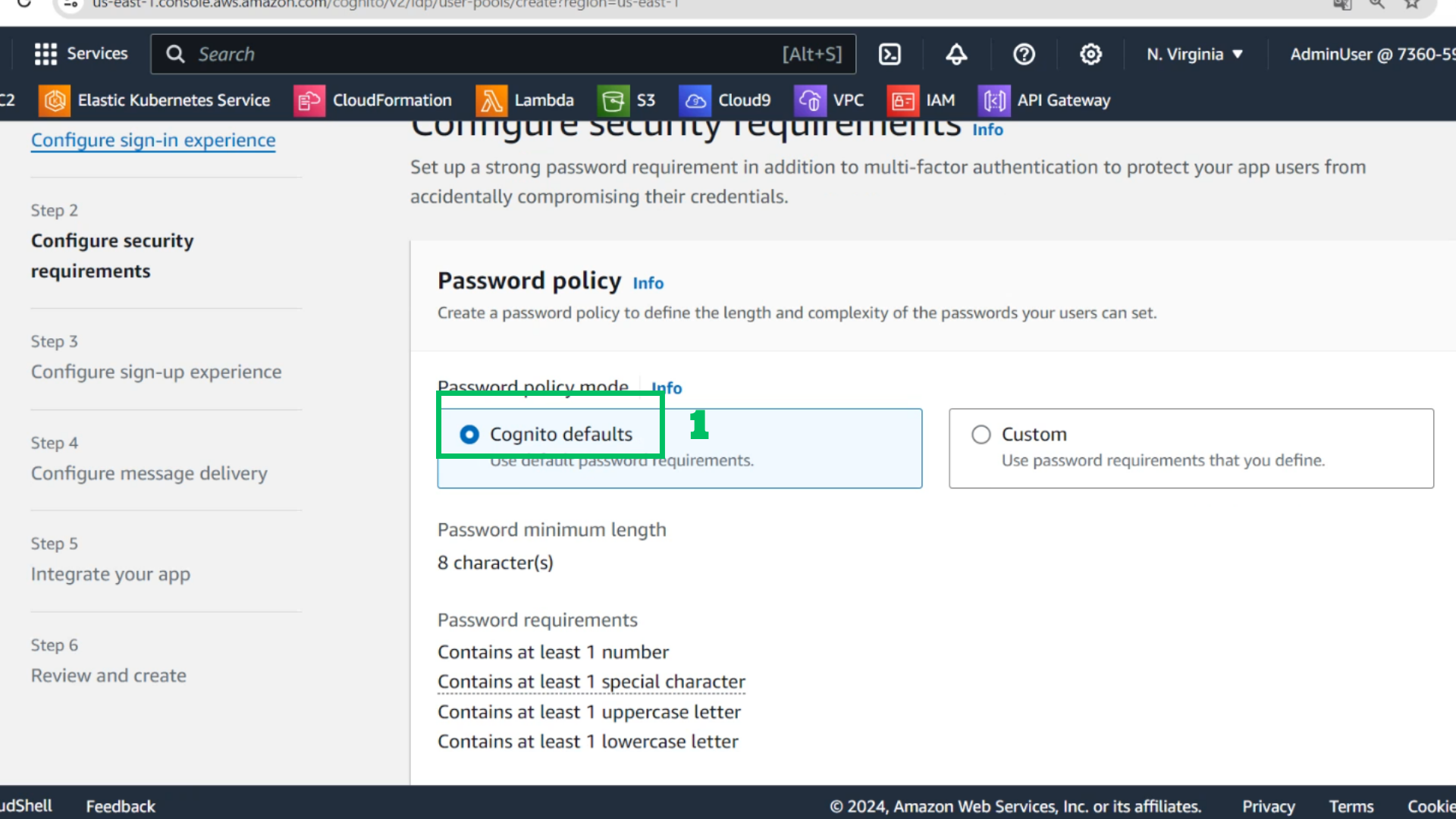
Choose Cognito default
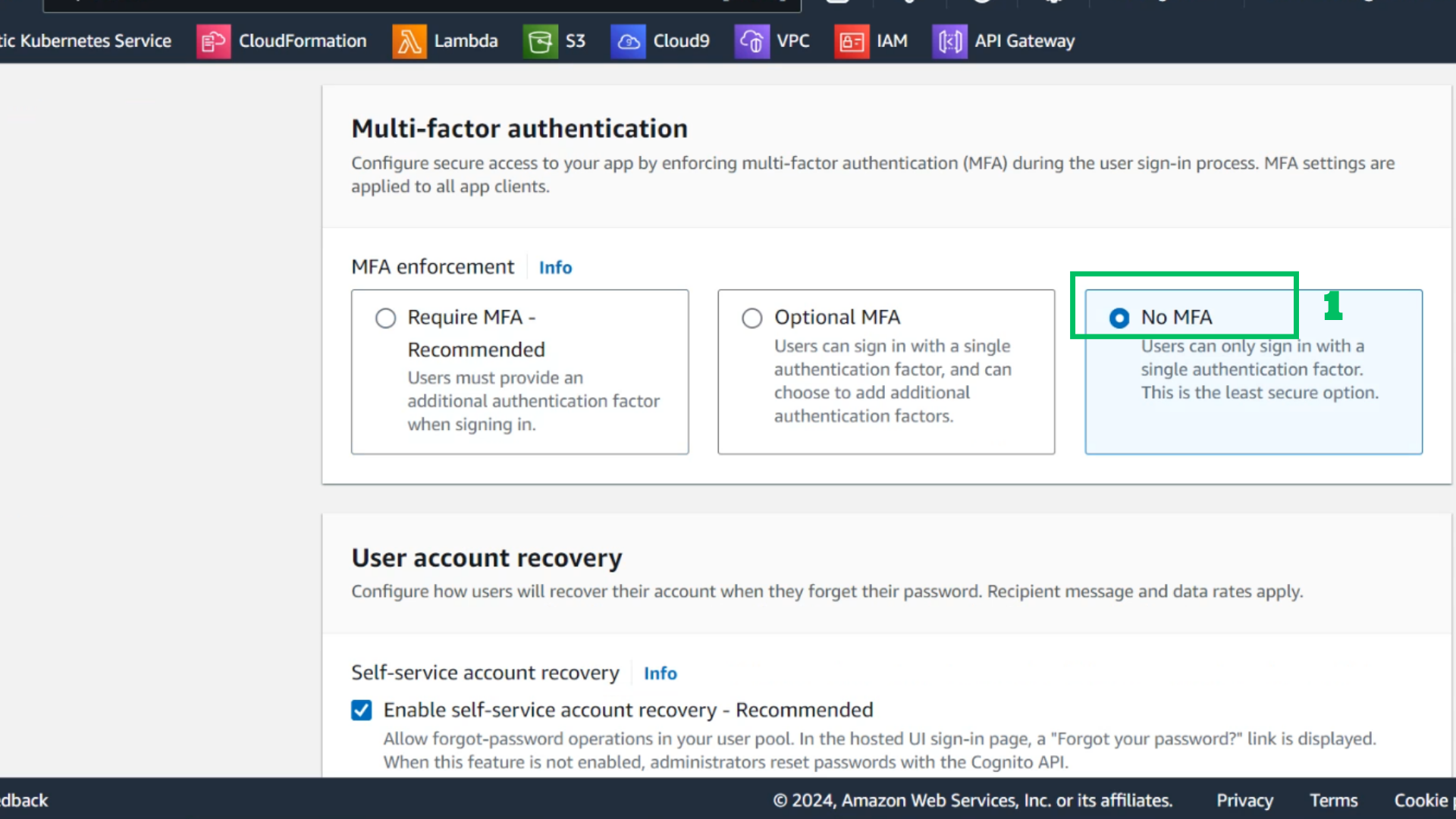
Choose No MFA for this project
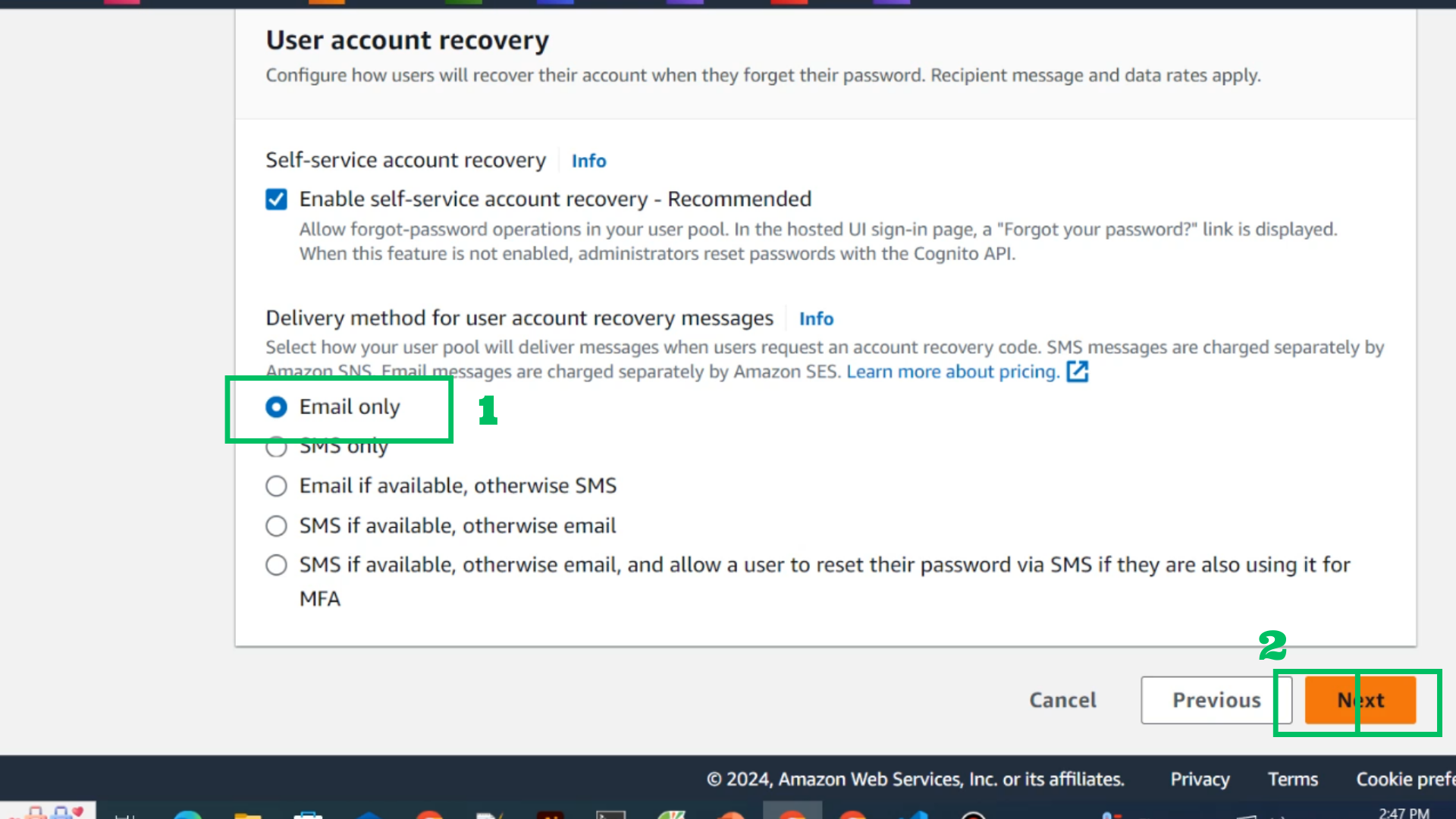
Choose Email Only
Choose Next
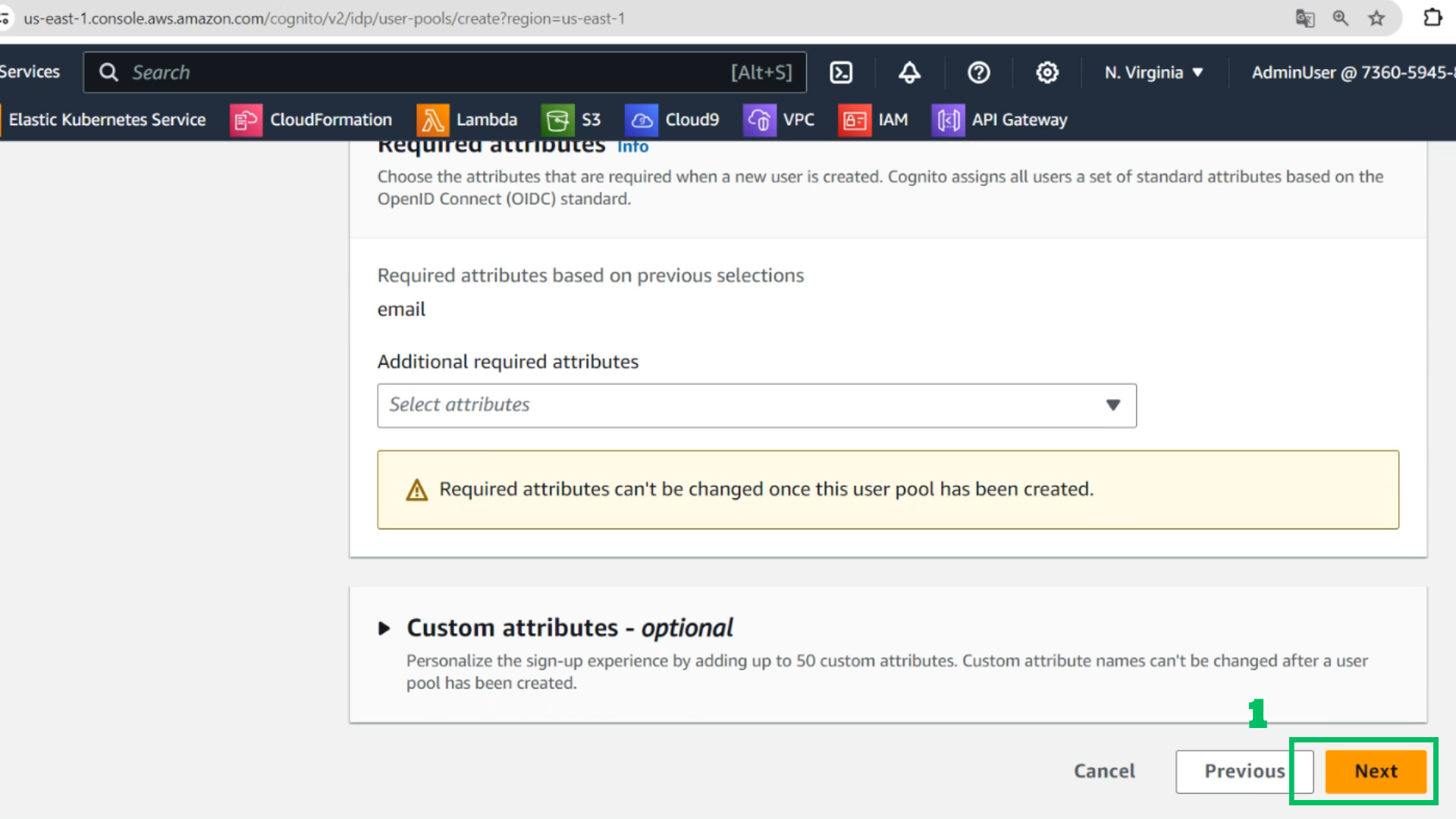
Choose Next
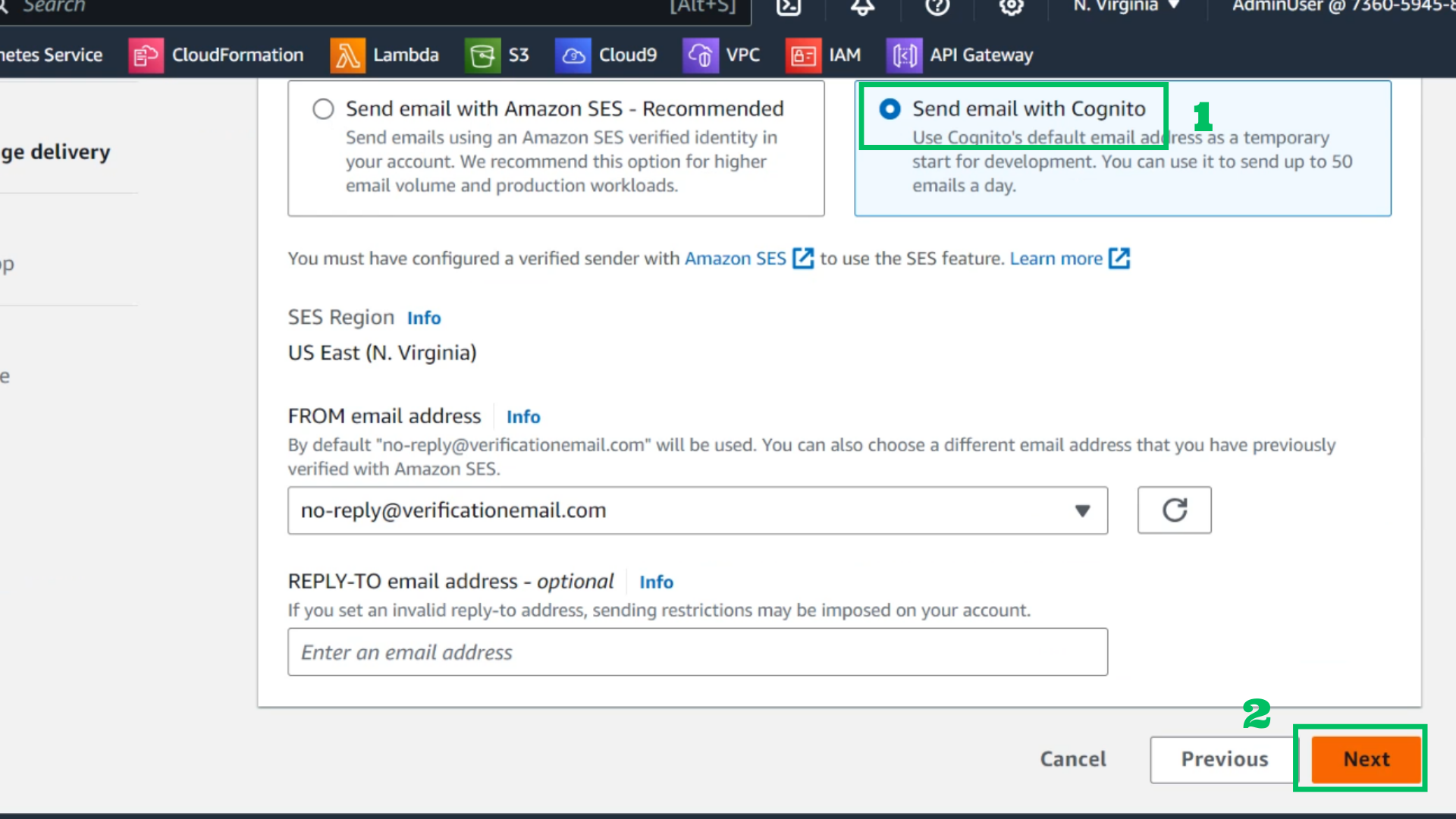
Choose Send email with Cognito
Choose Next
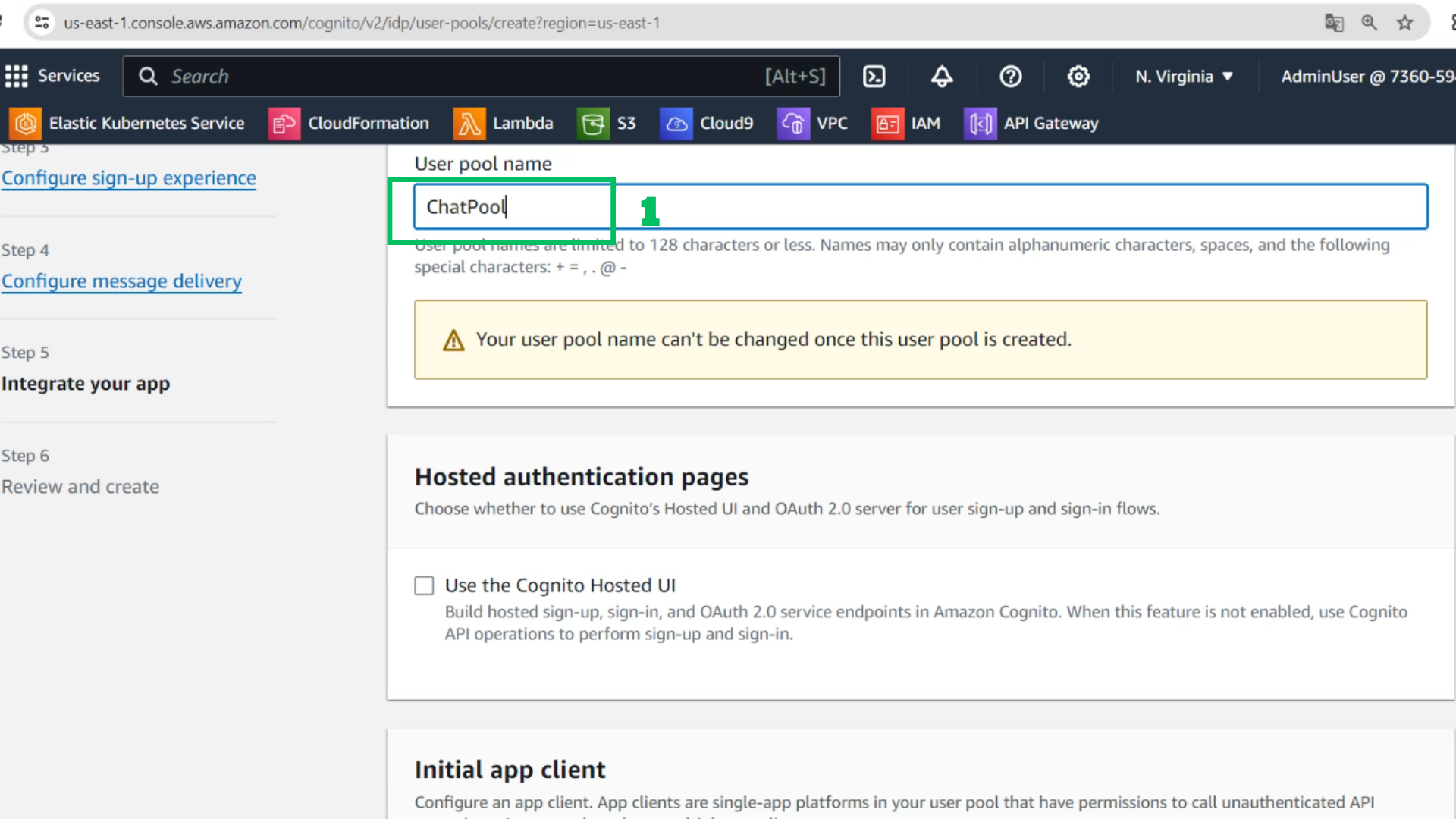
User pool name: ChatPool
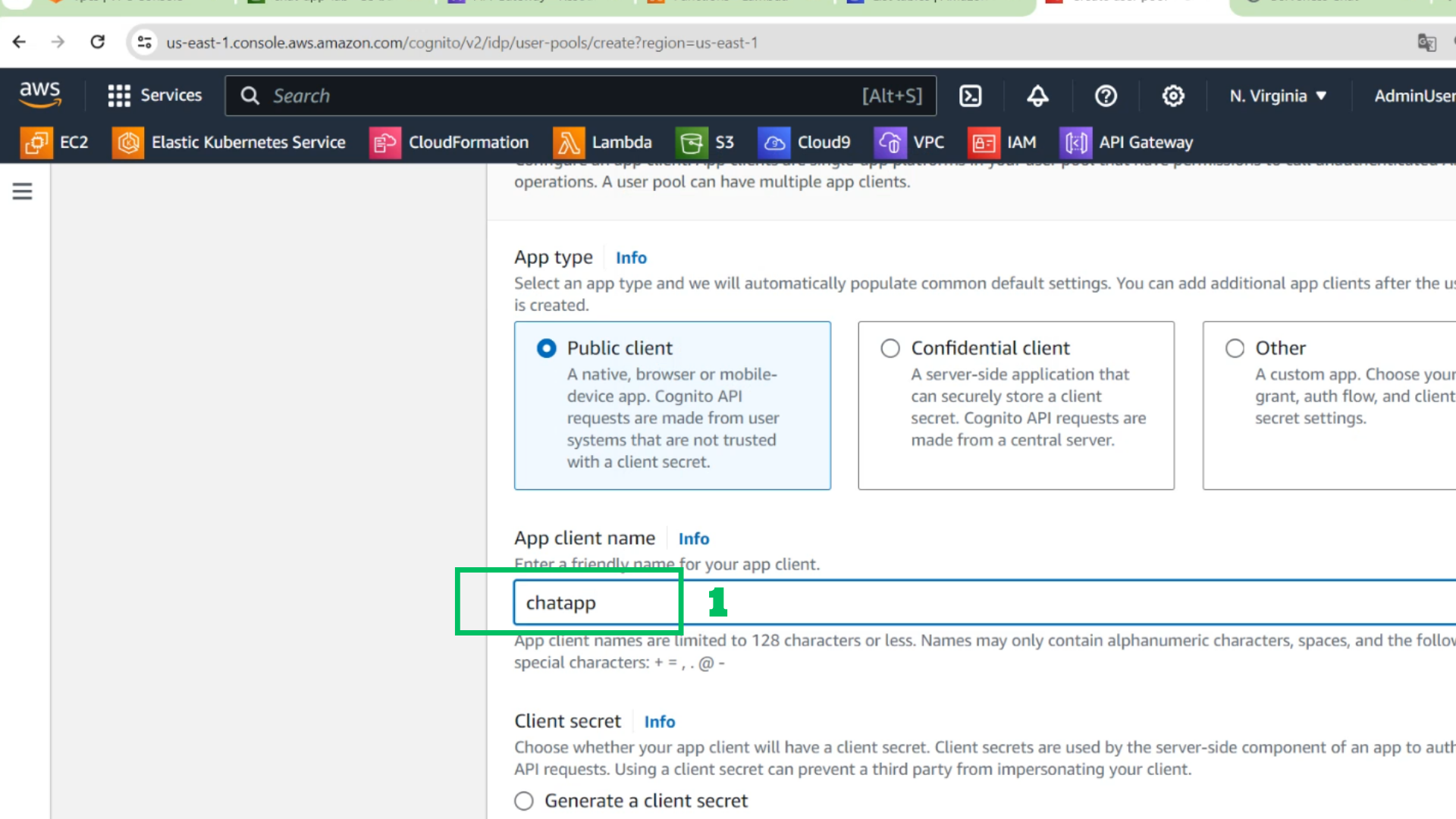
App client name: chatapp
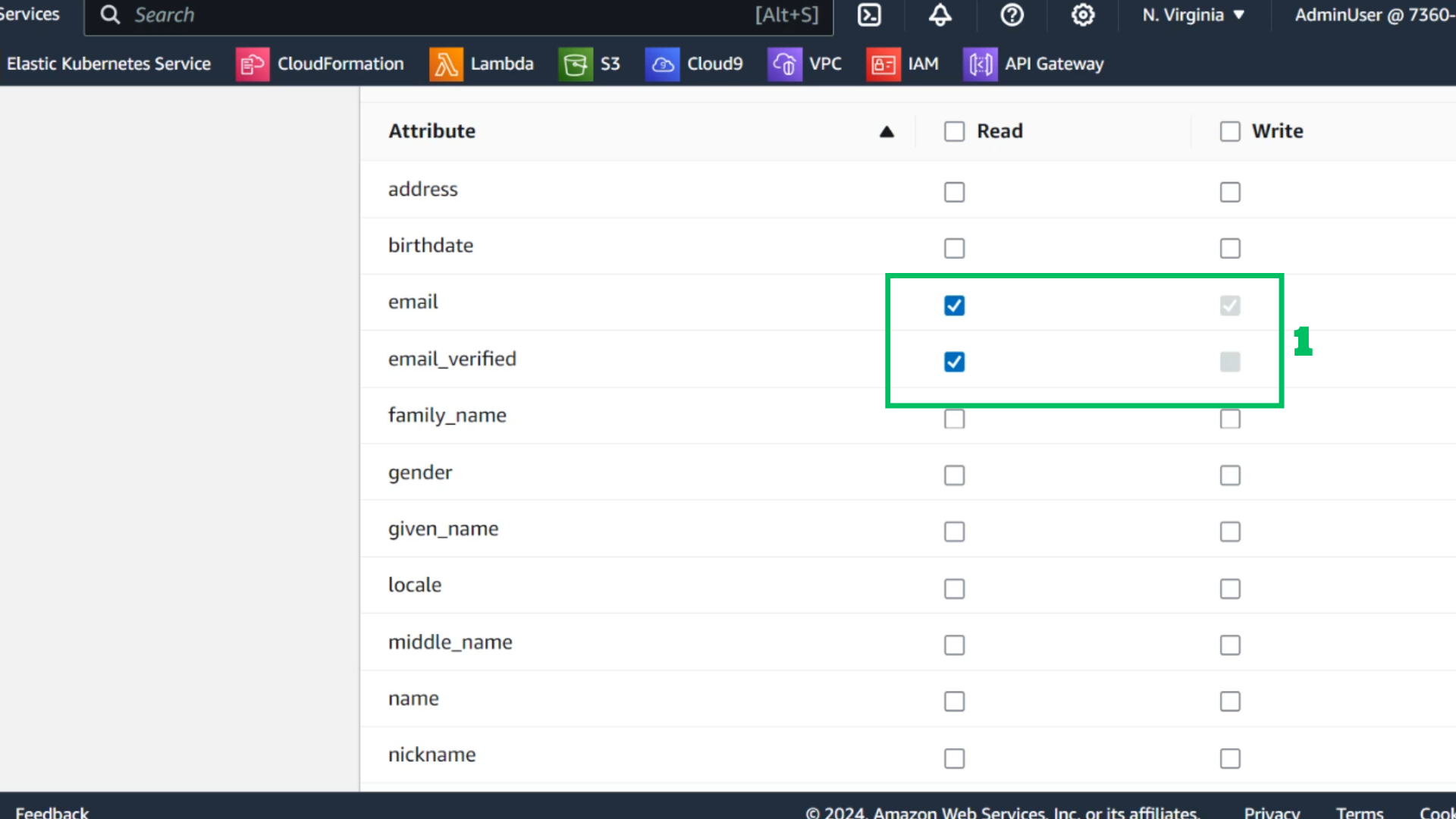
Only choose Read permission: email, email_verified
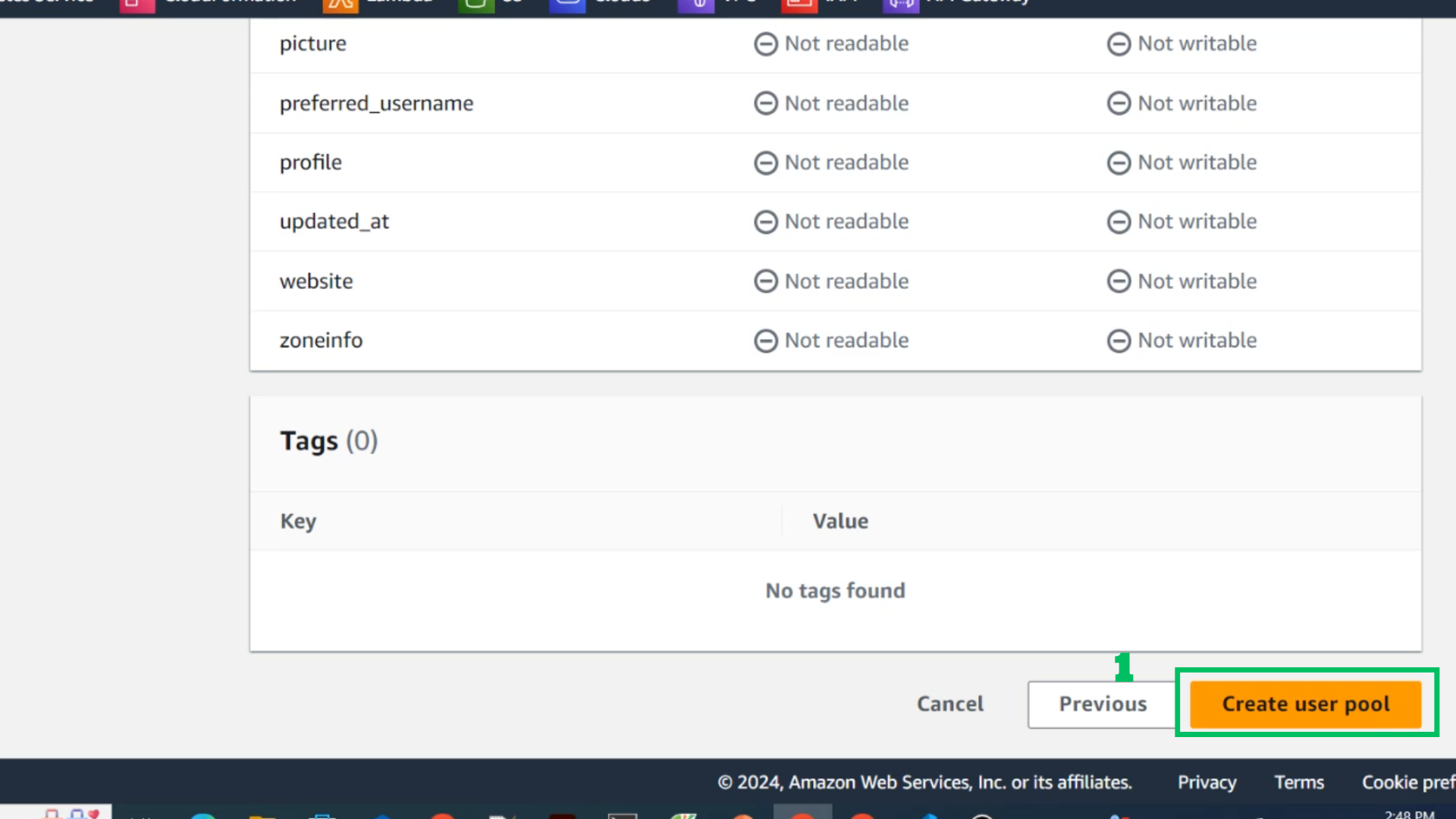
Choose Create user pool